

 WordPress Plugins
 Mass Users Password Reset
This guide explains the Mass Users Password Reset plugin. Please review it before installation. For support, contact [email protected].
4th of July Sale: 10% OFF on all KrishaStore Products. Code: INDEPENDENCE10. Limited time.
This guide explains the Mass Users Password Reset plugin. Please review it before installation. For support, contact [email protected].

Mass Users Password Reset Pro allows WordPress administrators to reset passwords for multiple users at once directly from the WordPress dashboard. It helps save time by avoiding manual password updates for individual users.
Mass Users Password Reset Pro also comes with advanced features like secure password reset links, one-time password emails, custom email templates, WP-CLI support, scheduled password reset policies, password reset activity logs, WooCommerce and BuddyPress compatibility, and full WordPress Multisite support for better security and easier user management.
The plugin is useful for membership websites, WooCommerce stores, LMS platforms, communities, and other websites that manage a large number of users. Administrators can filter users by roles or custom conditions and perform bulk password reset actions in just a few clicks.
View the comparison between MUPR and WordPress password reset

Before installing Mass Users Password Reset Pro, please ensure the following requirements are met:
If you are using Mass Users Password Reset Pro, you must first install and activate the free version of the Mass Users Password Reset plugin. After activating the free plugin, install and activate the Pro version to access all premium features.
For better email delivery, we recommend using an SMTP plugin or email service provider on your WordPress website.
It is always recommended to keep your WordPress, PHP, and MySQL/MariaDB versions up to date for security and performance reasons.
You can download the Mass Users Password Reset Pro plugin from CodeCanyon. After purchasing, you will receive a .zip file containing the plugin. You can install the plugin using one of the following methods:
After activating the plugin, go to Users → Mass Users Password Reset Pro from the WordPress admin dashboard.
On the User List page, you will see all available users along with their username, name, and email address. You can filter users by role using the User Role dropdown to quickly find specific users such as Customers, Subscribers, Members, or Administrators.
The Reset Password feature allows administrators to quickly reset passwords for multiple users directly from the WordPress dashboard. Go to Users → Mass Users Password Reset Pro to access the user management screen.
On the User List page, administrators can view user details such as profile picture, username, email address, role, nickname, and display name. Users can also be filtered by role using the User Role dropdown to quickly find specific user groups.
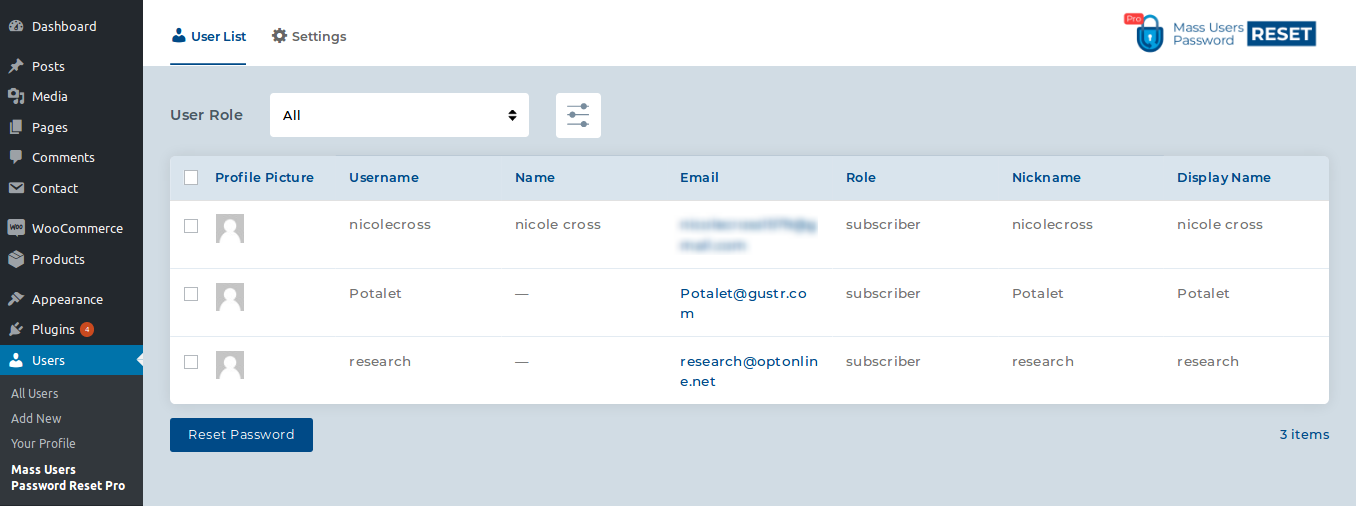
Select the users whose passwords you want to reset and click the Reset Password button. The plugin will automatically process the password reset and send password-related email notifications to selected users based on the configured settings.
The plugin also allows administrators to reset the password for an individual user directly from the default WordPress Users page.
Go to Users → All Users in the WordPress admin dashboard. When you hover over any user row, you will see the Reset Password option below the username.
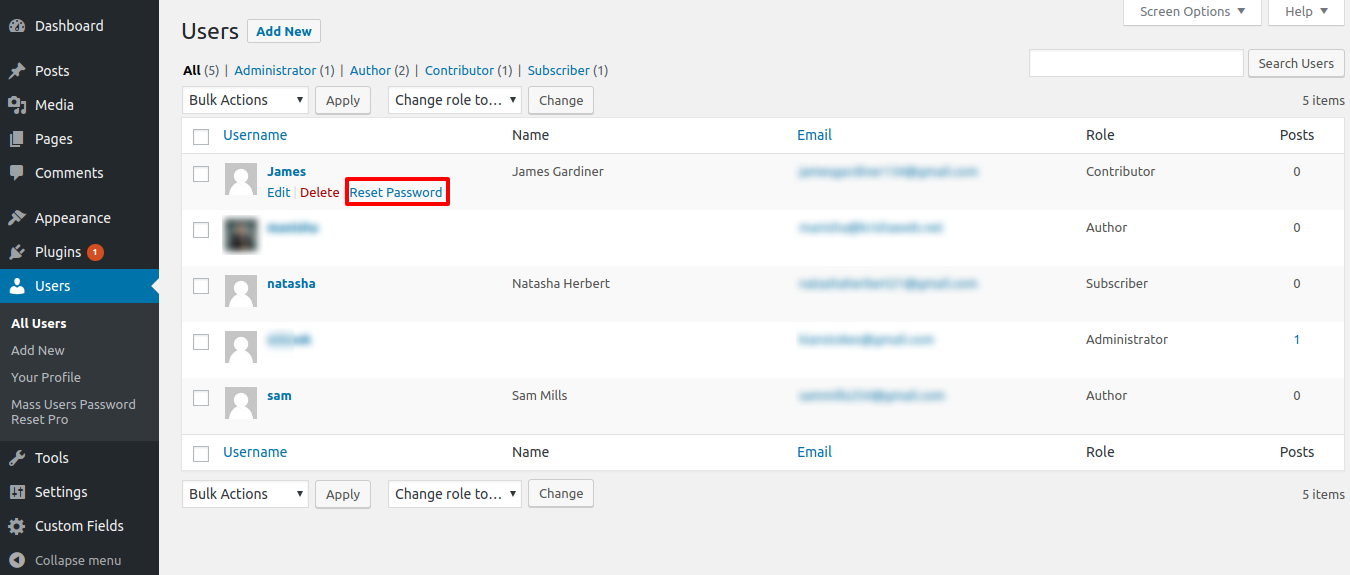
Click the Reset Password link to reset the selected user’s password. The plugin will automatically process the password reset and send the password related email notification to that user based on your configured email settings.
Mass Users Password Reset Pro fully supports WordPress Multisite networks. Administrators can manage and reset user passwords across different sites from a single dashboard.
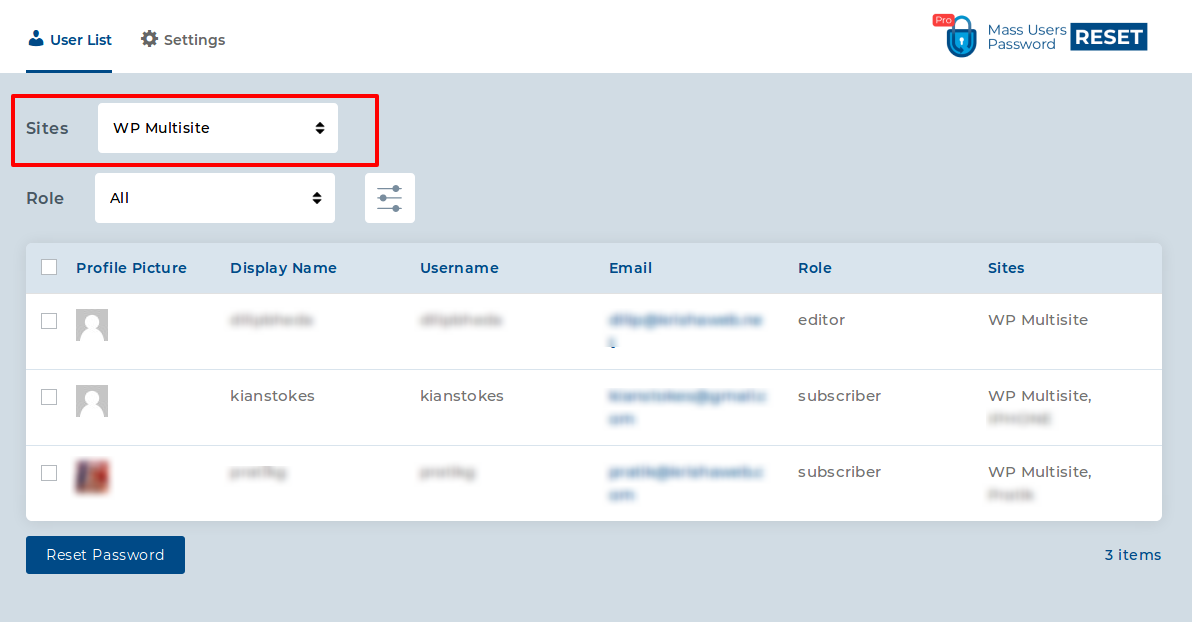
Using the Sites dropdown, you can filter users based on a specific multisite website and view users assigned to that site. The user list also displays the site information associated with each user for easier management.
After selecting users from the required site, administrators can perform bulk password reset actions directly from the multisite user management screen.
The Custom Filters feature allows administrators to quickly find specific users before performing password reset actions. You can filter users using details such as username, email address, nickname, display name, role, and other available user fields.
To use custom filters, first select a user role if needed. Then choose the filter type and filter value from the filter section. The plugin will automatically display matching users in the user list.
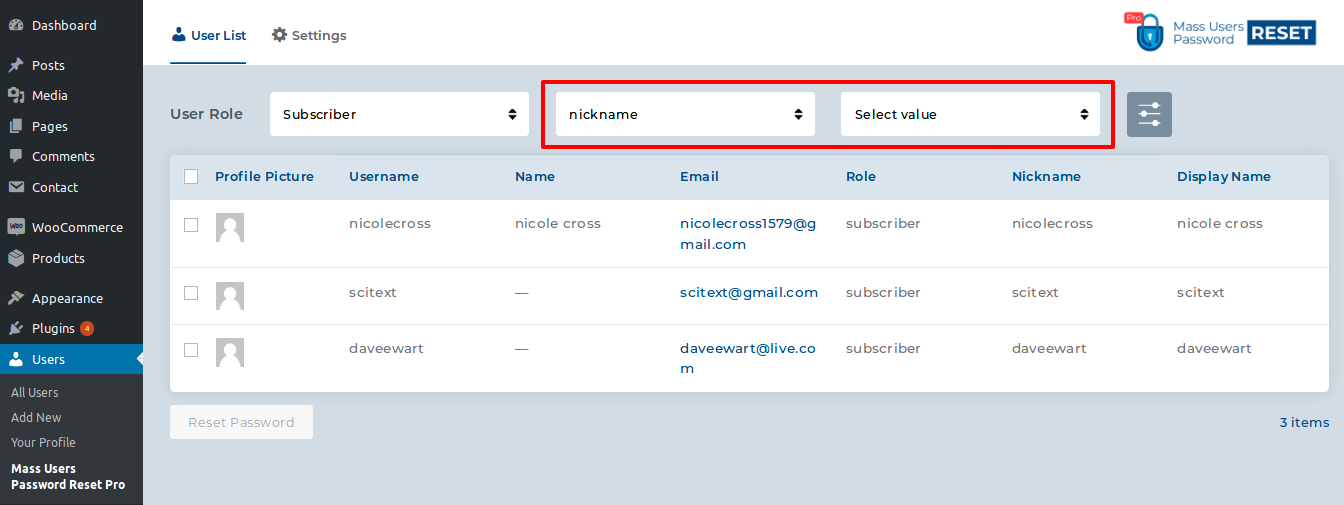
After applying the custom filters, you can select the users from the filtered list and click the Reset Password button to reset their passwords.
The Customized Email Template feature allows administrators to personalize password reset emails by adding user related information inside the email message.
You can use the available placeholders displayed on the right side of the settings page to dynamically insert user details into the email content. These placeholders can only be used inside the email message body.
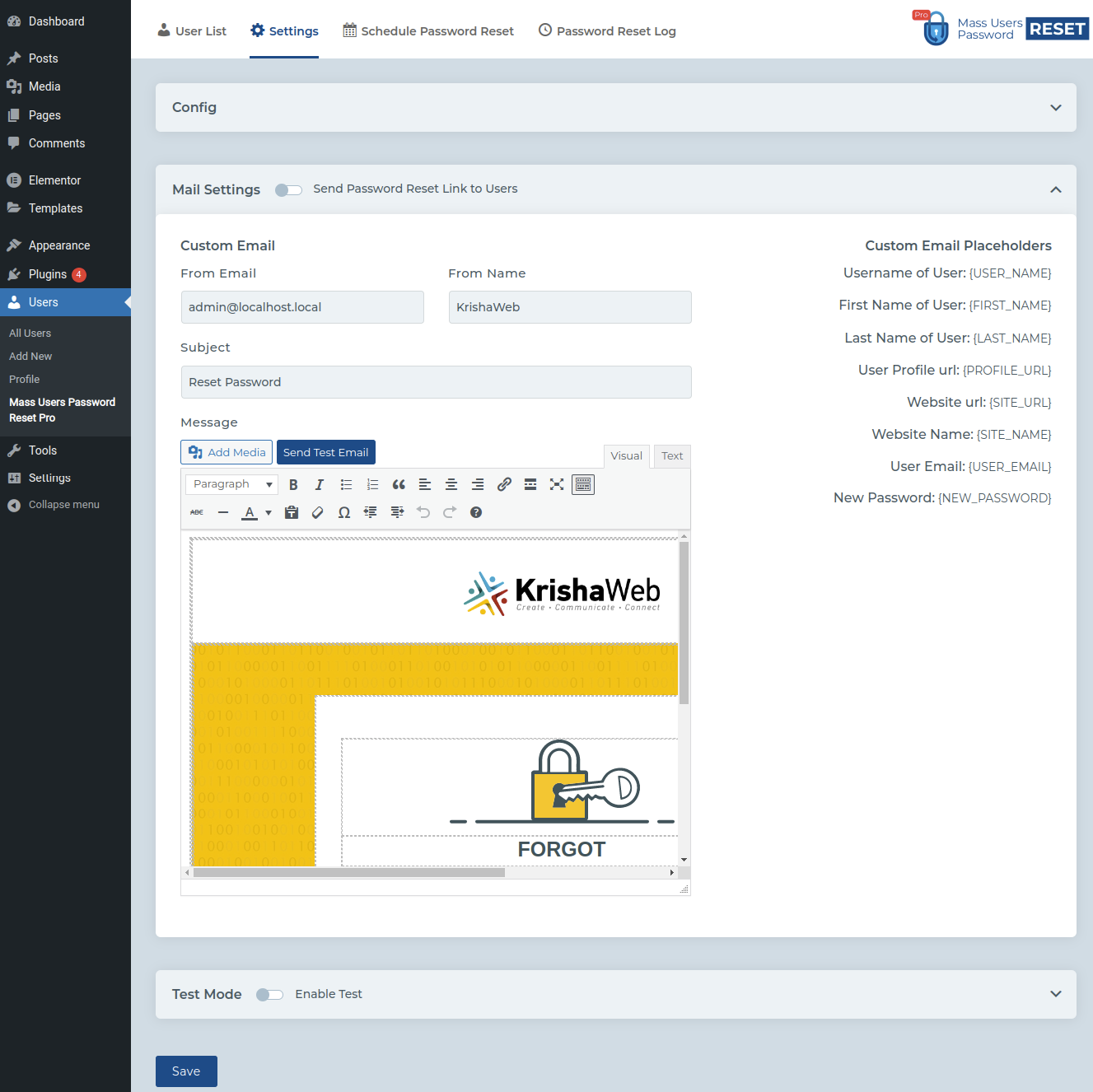
The plugin provides two different password reset methods.
If the Send Password Reset Link to Users option is disabled, the plugin will generate a new password automatically and send that password directly to users by email. In this method, you can use placeholders like {USER_NAME}, {FIRST_NAME}, {LAST_NAME}, {USER_EMAIL}, {SITE_NAME}, and {NEW_PASSWORD} inside the email message.
By default, the plugin generates an 8-character random password. You can customize the password length by using the 'mupr_password_length' filter in your theme’s functions.php file.
For Example: Write this code in function file:
add_filter(‘mupr_password_length’,’my_theme_function’);
function my_theme_function(){
	return 6;
}
This code will set the password length to 6 characters. You can change the number to your desired password length.
If the Send Password Reset Link to Users option is enabled, users will receive a password reset link instead of a generated password. In this method, you can use:
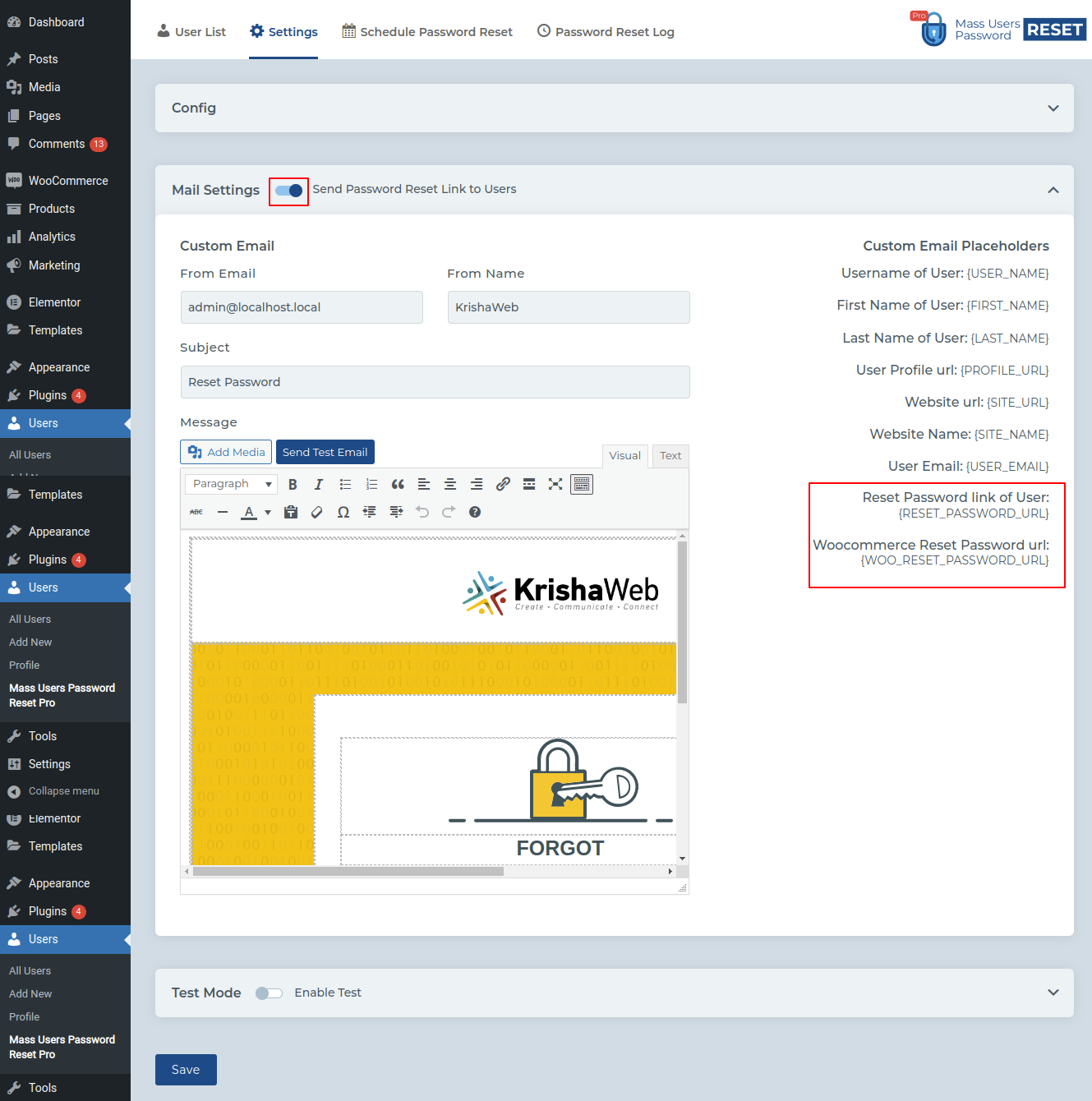
You can fully customize the email subject and message using the available placeholders shown on the right side of the settings page. The plugin also provides a Send Test Email option to test your email template before sending it to users.
The Test Mode feature allows administrators to test password reset emails using a specific email address before sending emails to actual users.
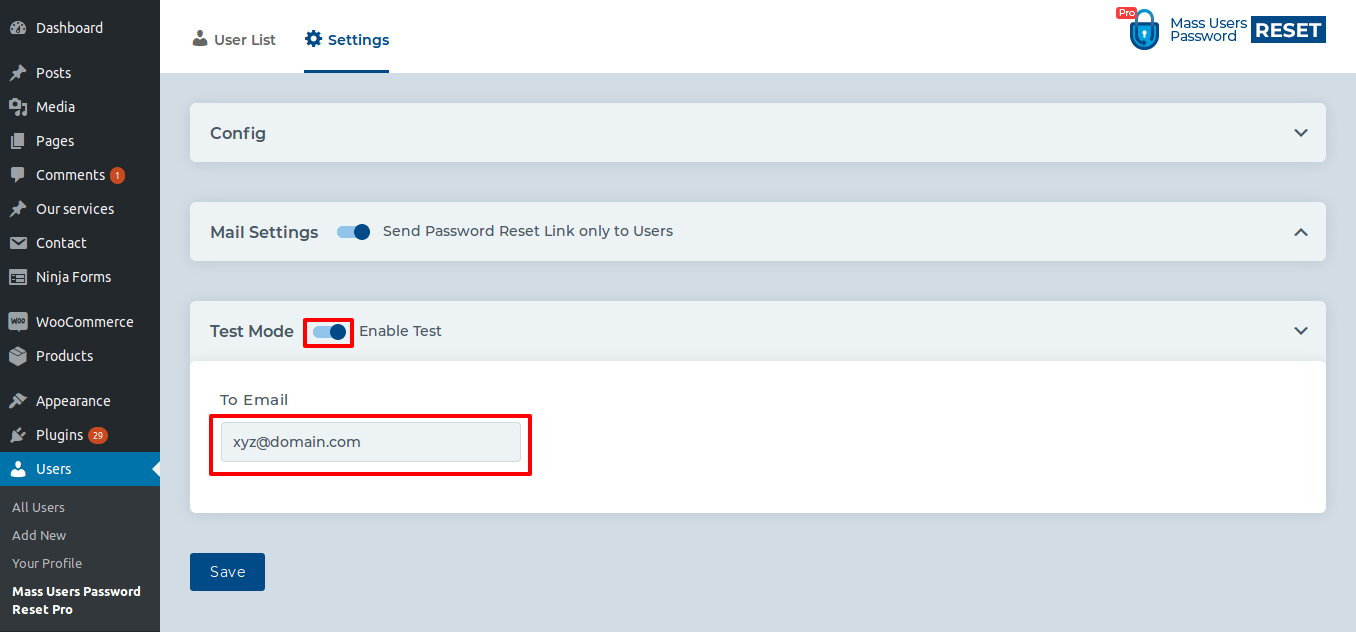
When Test Mode is enabled, the plugin will not send password reset emails to selected users. Instead, all reset password emails or reset password links will be sent only to the configured test email address.
This feature helps administrators safely test email templates, password reset links, placeholders, and email delivery settings without affecting real users on the website.
The User List Pagination setting allows administrators to control how many users are displayed per page on the user listing page.
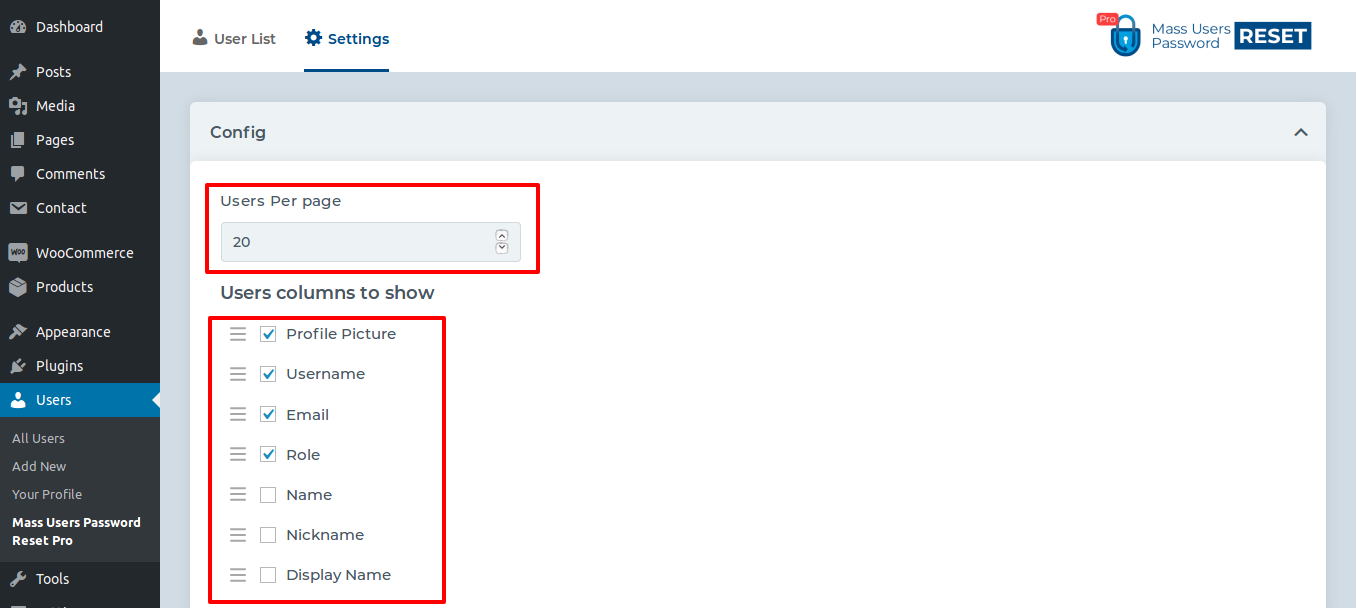
You can set the preferred number of users to display using the Users Per Page option available in the Config settings. This helps improve user management and navigation for websites with a large number of users.
The plugin also allows you to choose which user details should appear in the user list, such as profile picture, username, email address, role, name, nickname, and display name.
Mass Users Password Reset Pro also supports WP-CLI, allowing administrators to manage password reset operations directly from the command line.
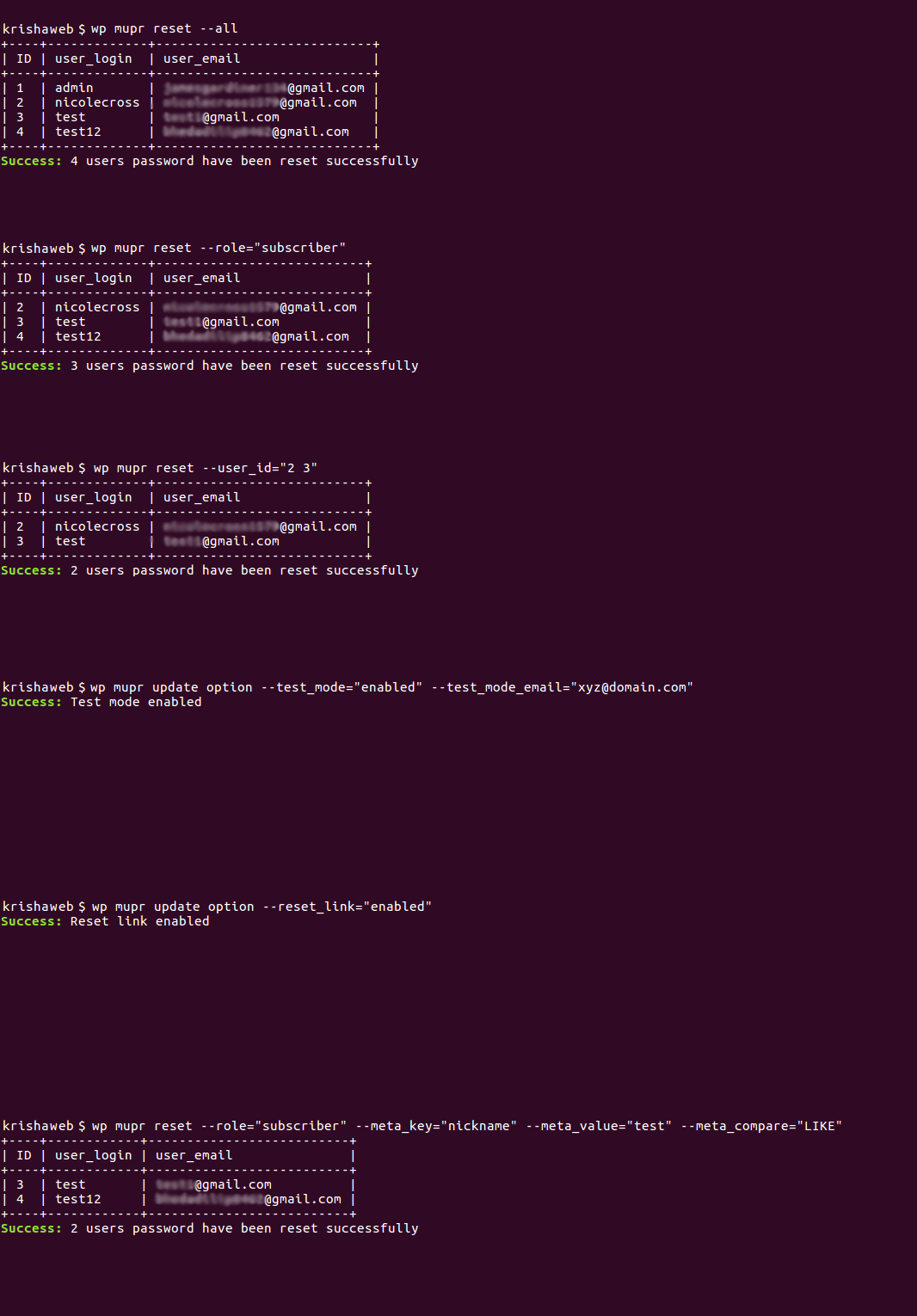
Using WP-CLI commands, administrators can reset passwords for users, perform bulk password reset actions, and manage password reset processes more efficiently without using the WordPress admin dashboard.
WP-CLI support is useful for large websites, automated workflows, server management, and advanced administrative tasks.
Following is the list of the WP CLI commands you can use:
The Exclude Valid Reset Link Users filter helps administrators identify users who already have an active password reset link. This filter is available only when the Send Password Reset Link to Users option is enabled in the email settings.
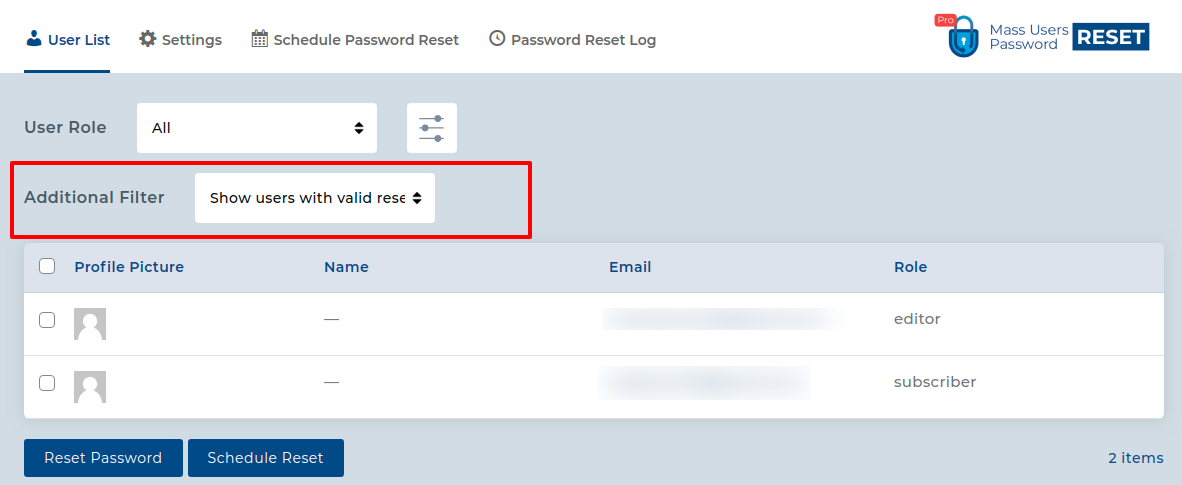
Using this filter helps avoid sending multiple active reset links to the same users. By default, reset password links expire after 1 day, but the expiration time can be customized from the plugin settings.
The Reset Link Expiration Time setting allows administrators to control how long the password reset link will remain active for users.
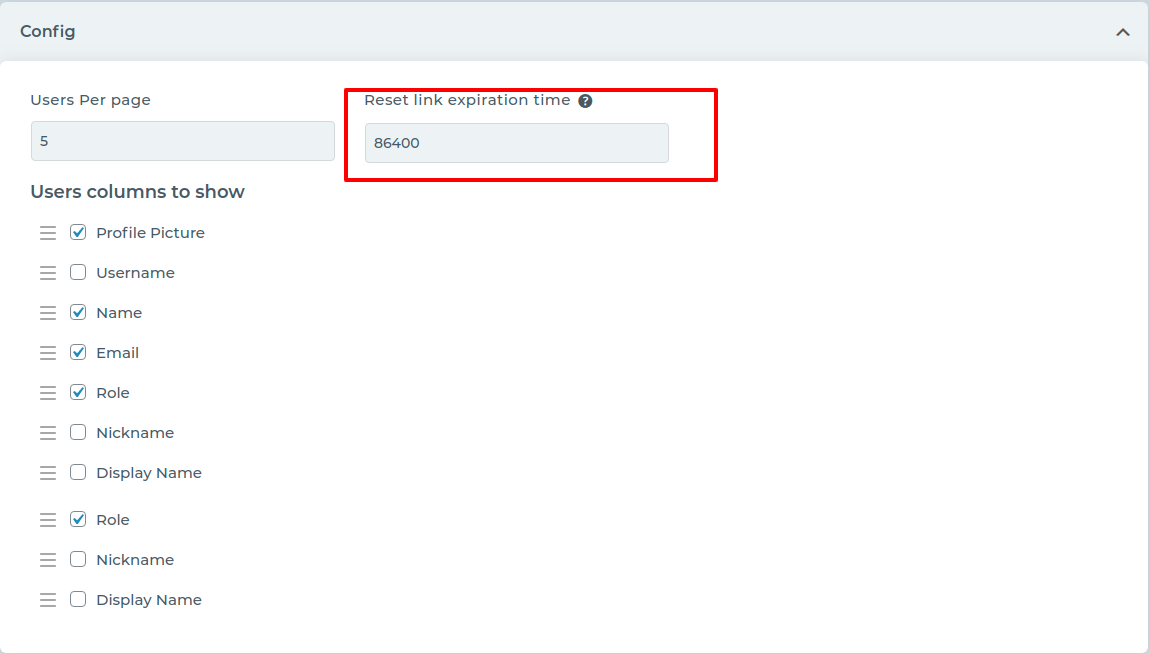
By default, the reset link expires after 86400 seconds (1 day), but you can change this value based on your website security requirements.
If you want to disable password reset email notifications, add the following code to your theme’s functions.php file.
/**
* Disable password reset email
*
* Callback function: __return_false OR __return_true
*/
add_filter( 'mupr_send_email', '__return_false' );
If you want to customize the generated password length, you can use the following filter. Simply replace the number 10 with your preferred password length. For better security, we recommend keeping the password length at least 6 characters.
/**
* Set auto generate password length.
*
* @param  int $length Password length.
* @return int
*/
function callback_function_password_length( $length ) {
	return 10;
}
add_filter( 'mupr_password_length', 'callback_function_password_length' );
If you want to use a fixed password for all selected users during the password reset process, add the following code to your theme’s functions.php file. Replace the password string with your preferred password.
/**
* Set custom password instead of auto generate password.
*
* @param  string $password Auto generate password.
* @param  object $userinfo User info.
* @return string Password
*/
function callback_function_set_user_password( $password, $userinfo ) {
	return $password;
}
add_filter( 'mupr_set_user_password', 'callback_function_set_user_password', 10, 2 );
If you want to perform custom actions after a user’s password has been reset, you can use the following action hook. The action provides user information through its parameters.
/**
* Execute something after password reset
*
* @param  object $userinfo User info.
*/
function callback_function_after_reset( $userinfo ) {
	// Code here
}
add_action( 'mupr_after_reset', 'callback_function_after_reset' );
If you want to change the plugin page location from the default Users menu to another admin menu or create a separate menu item, you can use the following filter.
/**
* Filter MUPR admin menu.
*
* @param array $menu MUPR menu item.
* @return array Menu item
*/
function theme_prefix_mupr_menu_config( $menu ) {
	$menu = array(
		'parent' => 'users.php', // Parent menu path If you want to create new menu then set `false`.
		'menu_title' => __( 'MUPR Pro', 'textdomain' ),
		'capability' => 'manage_options',
		'position' => 999, // NOTE: It will working only if 'parent' is set to false
	);
	return $menu;
}
add_filter( 'mupr_menu_config', 'theme_prefix_mupr_menu_config' );
If you want to send a copy of the password reset email to an additional email address, you can use the following filter.
/**
* Filter user notification email recipient.
*
* @param string $to Email Recipient.
* @return array Menu item
*/
function theme_prefix_mupr_email_recipient( $to ) {
	// Code here
	return $to;
}
add_filter( 'mupr_email_recipient', 'theme_prefix_mupr_email_recipient' );
The Schedule Password Reset Add-on allows administrators to automatically schedule password reset actions on a daily, weekly, or monthly basis. The addon will automatically process password resets and send password update emails to users based on the configured schedule.
This addon works with both Mass Users Password Reset Free and Mass Users Password Reset Pro plugins. All default plugin filters, settings, and features can also be used together with the scheduled reset functionality. For free plugin users, this addon additionally removes the default limit of 100 users and allows password reset operations for unlimited users.
If you want to test scheduled password reset functionality, you can enable test schedules for 5 minutes or 10 minutes by adding the provided code to your wp-config.php file. Once enabled, additional short interval options will be available for testing purposes.
define( 'SPR_DEV_MODE', true );Check out the amazing features of Schedule Password Reset Add On.
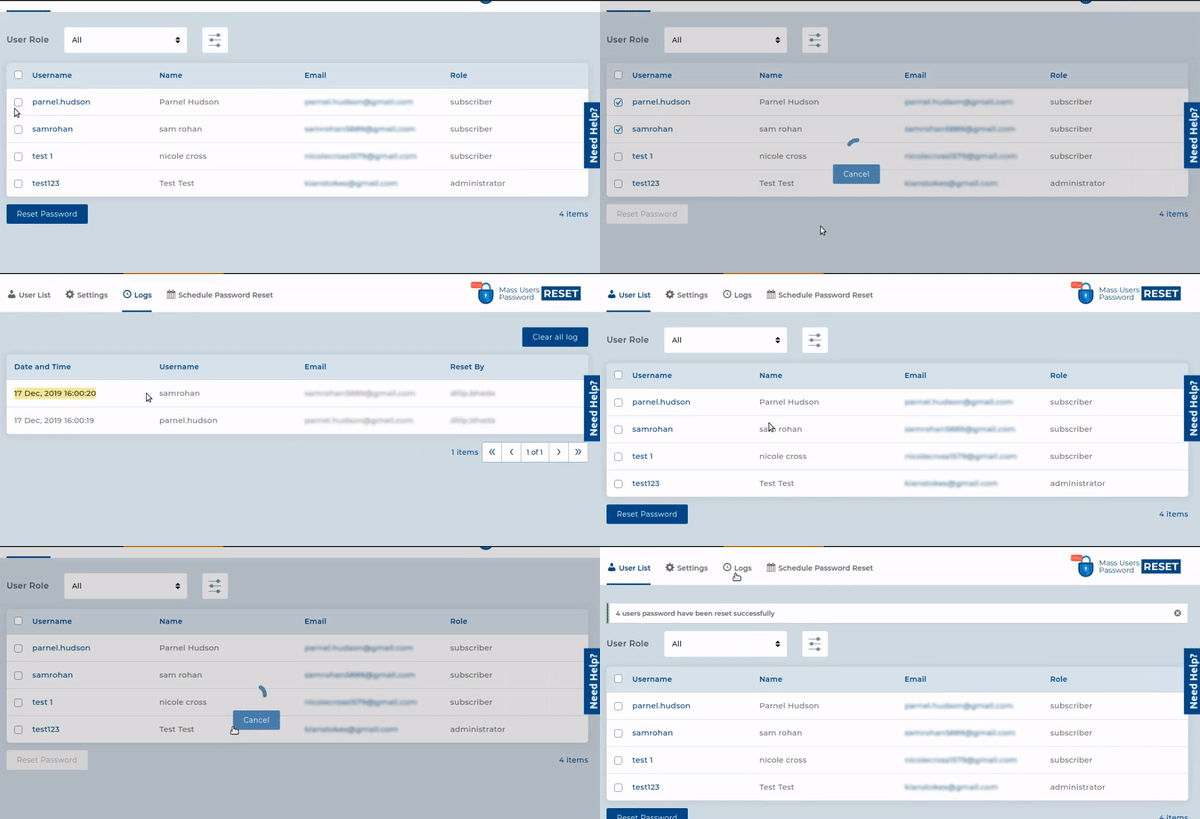
The Password Reset Log Add-on helps administrators track and manage password reset activities for users on the website. It stores the complete history of password resets performed using the Mass Users Password Reset plugin.
Using the log records, administrators can check which user password was reset, when the reset happened, and who performed the password reset action. This addon is compatible with both Mass Users Password Reset Free and Mass Users Password Reset Pro plugins.
Do you have any questions? Email us at [email protected] for personal assistance.